
Choosing the right graphic design software can feel a little like standing in front of a crowded toolbox.
Some tools are for professional designers creating logos, brand systems, packaging, and polished layouts. Others are better for marketers, small business owners, or content creators who need something that works without the extra layers of complexity.
The best graphic design platforms aren’t always the most expensive, complicated, or “industry-approved” option. It’s the one that helps you create the right kind of design with less friction.
Our guide rounds up 25 of the best graphic design software tools for 2026, from industry-standard programs to more beginner-friendly graphic design tools. We’ll go over what each tool is best for and the pros and cons to know about before you commit.
What Is Graphic Design?
Let’s get on the same page before we get into all the different programs available.
Graphic design is the art of using visuals to communicate a message.
That can include typography, colour, layout, images, icons, and illustrations. Design choices help people understand, trust, and remember what they’re looking at.
And no, graphic design is not just “making things look pretty.” Pretty is nice. Useful is better. The real magic happens when design looks good and helps people do something, like understand a service or recognize a brand.
The right graphic editing software helps turn those ideas into usable, polished visuals. The trick is choosing the right program for the kind of creative work you actually need to do.
Top 25 Graphic Design Software Tools in 2026
| Graphic Design Software | Best For | Free Option? | Skill Level |
|---|---|---|---|
| Adobe Photoshop | Photo editing, image design, composites | Trial | Intermediate to advanced |
| Adobe Illustrator | Logos, icons, vector graphics | Trial | Intermediate to advanced |
| Adobe InDesign | Print layouts, brochures, reports, magazines | Trial | Intermediate to advanced |
| Adobe Express | Quick graphics, social posts, simple brand assets | Yes | Beginner |
| Canva | Templates, social graphics, presentations, marketing content | Yes | Beginner |
| Figma | Web design, UI design, collaborative design | Yes | Beginner to advanced |
| Affinity | Professional design, photo editing, layout work | Trial / paid | Intermediate |
| GIMP | Free photo editing and raster graphics | Yes | Intermediate |
| Sketch | UI design and digital product design | Trial | Intermediate |
| Procreate | Digital illustration and hand-drawn artwork | No | Beginner to advanced |
| CorelDRAW | Vector graphics, print design, illustration | Trial | Intermediate to advanced |
| Inkscape | Free vector graphics and logo design | Yes | Beginner to intermediate |
| Krita | Digital painting and illustration | Yes | Beginner to advanced |
| Clip Studio Paint | Comics, illustration, character art | Trial / paid | Intermediate |
| Pixlr | Browser-based photo editing and quick graphics | Yes | Beginner |
| Photopea | Free browser-based Photoshop-style editing | Yes | Intermediate |
| VistaCreate | Social media graphics and template-based design | Yes | Beginner |
| Kittl | Typography, merch, logos, vintage-style designs | Yes | Beginner to intermediate |
| Snappa | Fast graphics for ads, blogs, and social media | Yes | Beginner |
| Linearity Curve | Vector design and illustration | Yes | Beginner to intermediate |
| Lunacy | UI, vector, and interface design | Yes | Beginner to intermediate |
| Vectr | Simple vector graphics | Yes | Beginner |
| Adobe Fresco | Drawing, painting, and illustration | Yes | Beginner to intermediate |
| Blender | 3D graphics and visual design | Yes | Advanced |
| Adobe Firefly | AI-assisted image generation and creative assets | Yes / paid | Beginner |
1. Adobe Photoshop
Adobe Photoshop is one of the most recognized graphic design software tools in the world. It has long been an industry standard for photo editing, image manipulation, and creative composition.
Best for: In-depth photo editing, image manipulation, and digital art.
Free or paid: Paid, with a free trial available.
Pros:
- Industry-standard graphic editing software
- Excellent for detailed image edits
- Strong AI-assisted editing features
- Works well with other Adobe apps
- Huge library of tutorials and resources
Cons:
- Can feel overwhelming for beginners
- Subscription pricing may not suit every budget
- Not the best option for logos or vector-only work
2. Adobe Illustrator
Adobe Illustrator is one of the best graphic design programs for vector artwork. Designers use it for logos, icons, illustrations, typography, packaging, brand assets, and scalable graphics.
Best for: Logos, icons, brand systems, typography, and vector graphics.
Free or paid: Paid, with a free trial available.
Pros:
- Industry-standard vector design software
- Excellent for logo design and illustration
- Scalable graphics for print and digital use
- Strong typography tools
- Integrates with Adobe Creative Cloud
Cons:
- Steep learning curve for beginners
- Subscription-based pricing
3. Adobe InDesign
Adobe InDesign is graphic design software built for layout or print design. Designers often pick it when creating magazines, reports, brochures, eBooks, proposals, white papers, catalogs, and multi-page documents.
If Photoshop is for images and Illustrator is for vector graphics, InDesign is for putting everything together in a polished layout.
Best for: Print design and long-form documents.
Free or paid: Paid, with a free trial available.
Pros:
- Excellent for professional layouts
- Great for multi-page documents
- Strong typography and grid controls
- Useful for print and digital publishing
- Works well with Photoshop and Illustrator files
Cons:
- Not ideal for photo editing or illustration
- Takes time to learn properly
- Overkill for quick one-page graphics
4. Adobe Express
Adobe Express is a more beginner-friendly Adobe graphic design platform. It’s designed for quick content creation, including social posts, flyers, videos, and presentations.
It’s a good choice for marketers, small businesses, and teams that want an easier tool than Photoshop or Illustrator.
Best for: Quick graphics, social media posts, simple print or video projects.
Free or paid: Free plan available, with paid upgrades.
Pros:
- Easier to use than many professional Adobe tools
- Good template library
- Useful for fast marketing content
- Includes simple AI-assisted features
Cons:
- Less control than Photoshop or Illustrator
- Not ideal for complex design work
- Template-based designs can feel less custom
5. Canva
Canva is one of the most popular graphic design platforms for non-designers, marketers, small businesses, educators, and content creators. It’s not always the best graphics program for advanced designers. But it’s one of the easiest tools for making polished visuals fast.
Best for: Social media graphics, templates, marketing materials, and simple brand assets.
Free or paid: Free plan available, with paid plans for more features.
Pros:
- Very beginner-friendly
- Huge template library
- Great for fast content creation
- Useful brand kit features
- Strong option for teams
Cons:
- Designs can look generic without customization
- Limited control compared to professional design software
- Not ideal for complex logos, packaging, or advanced layouts
6. Figma
Figma is a collaborative design platform widely used for web design, UX design, UI design, prototypes, design systems, and digital product design.
It’s especially useful for teams because multiple people can work in the same file at the same time. For agencies, developers, and product teams, Figma can make design feedback and handoff much smoother.
Best for: Website design, UI design, wireframes, prototypes, and collaborative design systems.
Free or paid: Free plan available, with paid team plans.
Pros:
- Excellent collaboration features
- Great for web and interface design
- Browser-based and easy to share
- Strong for design systems
- Useful for designers, developers, and clients
Cons:
- Not built for advanced photo editing
- Not ideal for print design
- Can become messy without good file organization
7. Affinity
Affinity has become a serious option for designers looking for professional graphic design software outside the Adobe ecosystem. It can support design, photo editing, illustration, and layout work.
Affinity is useful for people who want more control than Canva but don’t want to rely entirely on Adobe tools.
Best for: Professional design, image editing, illustration, layouts, and Adobe alternatives.
Free or paid: Free access available.
Pros:
- Professional-level design tools
- Strong Adobe alternative
- Good for photo editing, layout, and vector work
- Powerful enough for serious creative work
Cons:
- Smaller ecosystem than Adobe
- Fewer tutorials and third-party resources
- Some workflows may feel different for Adobe users
8. GIMP
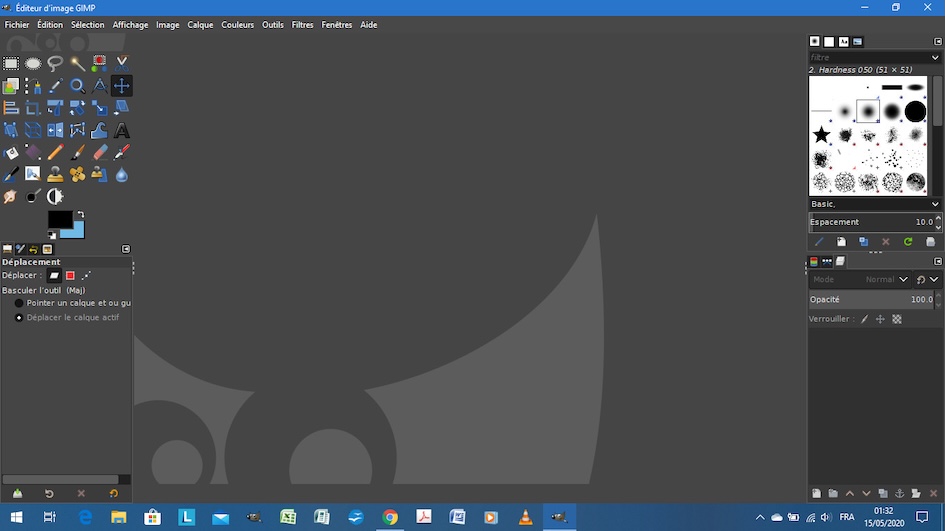
GIMP is a free, open-source graphic editing software program. It’s often compared to Photoshop because it supports image editing, layers, filters, retouching, and raster-based design work.
It’s a strong option for people who need free graphic design software and are willing to spend time learning the interface.
Best for: Free photo editing, image manipulation, and raster graphics.
Free or paid: Free.
Pros:
- Completely free and open source
- Good for photo editing and image manipulation
- Works on multiple operating systems
- Supports plugins and customization
Cons:
- Interface can feel less modern
- Steeper learning curve than some beginner tools
- Not as seamless as paid professional platforms
9. Sketch
Sketch is a Mac-focused design program often used for UI design, website layouts, app interfaces, and digital product design.
Before Figma became dominant in collaborative design, Sketch was one of the go-to tools for interface designers. It’s still a strong option for Mac-based designers and teams.
Best for: UI design, app design, website layouts, and digital product design.
Free or paid: Paid, with a free trial available.
Pros:
- Clean interface
- Strong for UI and digital design
- Good plugin ecosystem
- Supports design systems and reusable components
Cons:
- Mac-focused
- Not ideal for print design or photo editing
- Collaboration may not feel as flexible as Figma for some teams
10. Procreate
Procreate is a popular iPad app for digital illustration, drawing, painting, lettering, and hand-drawn creative work. It’s especially loved by illustrators, artists, and designers who prefer drawing with an Apple Pencil.
While it’s not a full replacement for desktop graphic design software, it’s excellent for custom artwork and expressive visuals.
Best for: Illustration, digital painting, sketching, lettering, and hand-drawn design.
Free or paid: Paid one-time app purchase.
Pros:
- Intuitive drawing experience
- Great brush library
- Strong for custom illustrations
- One-time purchase
Cons:
- iPad-only
- Not ideal for layout or brand systems
- Limited compared to desktop software for some production workflows
11. CorelDRAW
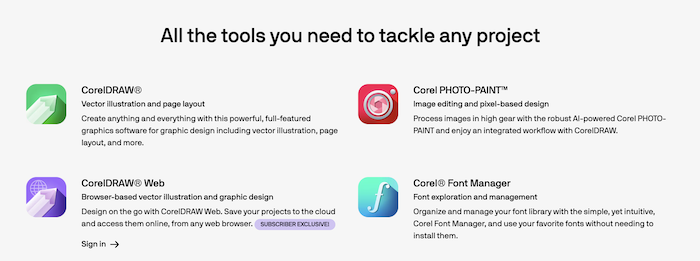
CorelDRAW is professional graphic design software for vector illustration, page layout, typography, and print design.
It’s often used for signage, apparel design, print materials, and technical illustration. It’s a strong choice for designers who want a powerful alternative to Adobe Illustrator.
Best for: Vector illustration, print design, signage, typography, and layout.
Free or paid: Paid, with a free trial available.
Pros:
- Strong vector design tools
- Good for print and signage workflows
- Available for Windows and Mac
- Useful for layout and typography
Cons:
- Can be expensive
- Interface may take time to learn
12. Inkscape
Inkscape is a free, open-source vector graphic design program. Designers use it for logos, icons, diagrams, illustrations, web graphics, and scalable SVG artwork.
It’s a strong choice for students, hobbyists, and small businesses looking for free vector design software.
Best for: Free vector graphics, logos, icons, diagrams, and SVG artwork.
Free or paid: Free.
Pros:
- Free and open source
- Good for vector artwork
- Supports SVG files
- Useful for logos and icons
- Works across major operating systems
Cons:
- Interface feels less polished than some paid tools
- May be slower with complex files
- Not as widely used in professional agency workflows
13. Krita
Krita is free design software focused on digital painting, concept art, illustration, and texture work.
It’s especially useful for artists who want a no-cost tool for painting and drawing. With that in mind, it’s less of a general-purpose graphic design platform.
Best for: Digital painting, concept art, illustration, and texture design.
Free or paid: Free.
Pros:
- Free and open source
- Strong brush tools
- Great for illustrators and painters
- Supports layers and advanced art workflows
- Good community support
Cons:
- Not ideal for layout or branding work
- Less suited to quick marketing graphics
- Can take time to learn
14. Clip Studio Paint
Clip Studio Paint is popular with illustrators, comic artists, manga artists, and character designers.
It’s one of the best graphic designing software options for people creating detailed line art, comics, panels, and expressive illustrations.
Best for: Comics, manga, character art, illustration, and line work.
Free or paid: Paid, with trial options depending on device and plan.
Pros:
- Excellent for illustration and comics
- Strong brush and pen tools
- Helpful comic layout features
- Good for detailed character art
Cons:
- Less useful for general marketing design
- Interface can feel dense
- Not the best option for simple business graphics
15. Pixlr
Pixlr is a browser-based graphic editing software tool for quick photo edits, simple graphics, background removal, and social content.
It’s a useful option when you need basic editing without downloading a full design program.
Best for: Quick photo edits, simple graphics, and browser-based design.
Free or paid: Free plan available, with paid upgrades.
Pros:
- Easy to access in a browser
- Beginner-friendly
- Good for quick image edits
- Useful for simple social graphics
- No heavy software installation needed
Cons:
- Limited compared to professional tools
- Free version may have restrictions
- Not ideal for complex design projects

16. Photopea
Photopea is a free browser-based design program that feels similar to Photoshop. It supports layered files and can be useful for quick edits when you don’t have access to Adobe software.
Sstudents, freelancers, or teams that occasionally need Photoshop-style editing without a full subscription will find Photopea useful.
Best for: Browser-based image editing, PSD-style files, and quick graphic edits.
Free or paid: Free, with paid options.
Pros:
- Works in a browser
- Familiar interface for Photoshop users
- Supports layered editing
- Useful for quick edits
- Free access available
Cons:
- Browser performance can vary
- Not as robust as Photoshop
- Ads or limitations may affect the free experience
17. VistaCreate
VistaCreate is a template-based design platform similar to Canva. It’s used for social media graphics, ads, posters, flyers, animations, and marketing visuals. This is a practical choice for small teams and content creators who need quick, good-looking designs.
Best for: Social media graphics, ads, posters, flyers, and simple branded content.
Free or paid: Free plan available, with paid upgrades.
Pros:
- Easy to use
- Good template library
- Helpful for fast marketing design
- Beginner-friendly
- Useful for social media content
Cons:
- Less flexible than professional software
- Designs can feel template-heavy
- Not ideal for advanced brand or print work
18. Kittl
Kittl is a graphic design platform known for typography, vintage-style graphics, logos, merchandise, labels, and social content. It’s especially useful for creators working on apparel, posters, packaging-inspired visuals, or type-heavy designs.
Best for: Typography, merch design, logos, labels, posters, and vintage-inspired graphics.
Free or paid: Free plan available, with paid upgrades.
Pros:
- Strong typography tools
- Great for merch and product-style graphics
- Useful template library
- Beginner-friendly
- Good for eye-catching visual styles
Cons:
- Not ideal for every brand style
- Less flexible than full professional software
- Some features require paid access
19. Snappa
Snappa is a simple graphic design software option for creating social posts, display ads, blog graphics, and quick marketing visuals. While it doesn’t support complex design systems, it helps when speed matters more than customization.
Best for: Social posts, blog graphics, ads, and quick content creation.
Free or paid: Free plan available, with paid upgrades.
Pros:
- Fast and easy to learn
- Good for marketers and small businesses
- Useful preset sizes
- Simple template-based workflow
- No advanced design skills required
Cons:
- Limited advanced features
- Less suitable for custom brand work
- Not ideal for professional designers needing control
20. Linearity Curve
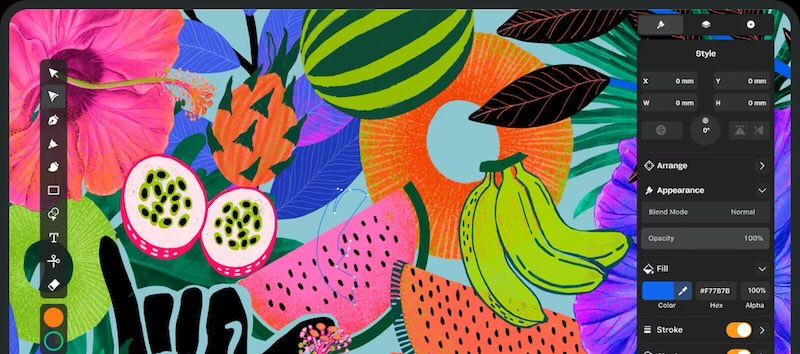
Linearity Curve is a vector design tool used for illustrations, icons, social media graphics, lettering, and interface visuals.
Best for: Vector illustrations, icons, lettering, and digital graphics.
Free or paid: Free plan available, with paid upgrades.
Pros:
- Modern interface
- Good for vector design
- Useful for illustration and icons
- Beginner-friendly compared to some pro tools
- Works well for digital content
Cons:
- Smaller ecosystem than Adobe
- May not suit all professional production workflows
- Some advanced features may require paid access
21. Lunacy
Lunacy is a design program for UI, UX, web design, vector graphics, and interface layouts. It can be useful for designers who want an alternative to Figma or Sketch, especially when working on digital products and interface design.
Best for: UI design, website mockups, vector graphics, and interface design.
Free or paid: Free plan available.
Pros:
- Good for UI and web design
- Supports vector editing
- Beginner-friendly
- Useful for digital product work
- Free access available
Cons:
- Less widely adopted than Figma
- Not ideal for print or photo editing
22. Vectr
Vectr is a simple vector graphics program for beginners. Designers often use it for basic logos, icons, diagrams, and simple web graphics. It’s not as powerful as Illustrator, CorelDRAW, or Inkscape, but it can work well for basic vector design needs.
Best for: Simple vector graphics, beginner logo concepts, icons, and diagrams.
Free or paid: Free plan available.
Pros:
- Easy for beginners
- Useful for simple vector work
- Browser-based options
- Low learning curve
- Good for quick concepts
Cons:
- Limited advanced design features
- Not ideal for complex professional work
- Less control than stronger vector tools
23. Adobe Fresco
Adobe Fresco is a drawing and painting app for digital artists, illustrators, and designers who want a more natural sketching experience.
It works well for hand-drawn artwork, custom illustrations, and creative assets that can later be used in larger brand or marketing projects.
Best for: Digital drawing, painting, sketching, and illustration.
Free or paid: Free plan available, with paid features.
Pros:
- Natural drawing experience
- Good brush tools
- Useful for illustrators
- Works well with other Adobe tools
- Beginner-friendly for drawing
Cons:
- Not a full graphic design platform
- Less useful for layout or typography-heavy work
- Best with a tablet or stylus
24. Blender
Blender is not traditional graphic design software, but it’s a powerful free tool for 3D graphics, animation, modelling, and visual effects. If you’re creating product renders, 3D visuals, motion graphics, or experimental creative work, Blender can be a major asset.
Best for: 3D graphics, product renders, animation, and visual effects.
Free or paid: Free.
Pros:
- Free and open source
- Extremely powerful 3D tools
- Great for product and motion visuals
- Strong creative community
- Useful for advanced visual projects
Cons:
- Steep learning curve
- Not ideal for basic graphic design
- Can be too advanced for simple marketing needs
25. Adobe Firefly
Adobe Firefly is an AI-assisted creative tool that can help generate images, text effects, backgrounds, and creative assets. It’s not a complete replacement for graphic designer software, but it can support the creative process.
Designers can use it for concept development, background generation, visual exploration, and speeding up repetitive creative tasks.
Best for: AI-assisted creative assets, image generation, backgrounds, and design concepts.
Free or paid: Free and paid access options.
Pros:
- Useful for fast concept generation
- Helpful for creative brainstorming
- Can support Adobe workflows
- Beginner-friendly
- Good for creating starting points
Cons:
- AI outputs still need human review
- Not a replacement for design strategy
- May not always match brand requirements
How to Choose the Best Graphic Design Software
The best graphic design software depends on what you need to create, how advanced your skills are, and how much control you want over the final design.
Before choosing a graphic design program, ask yourself these questions.
- What are you designing?
- Are you a beginner or an experienced designer?
- Do you need free graphic design software?
- Do you need team collaboration?
What Software Do Most Graphic Designers Use?
Many professional graphic designers still use Adobe Creative Cloud, especially Photoshop, Illustrator, and InDesign. These tools have been industry standards for years. This is mainly because they support professional design workflows across print, digital, branding, illustration, and layout design.
That said, the graphic design software landscape has changed.
Today, many designers and teams also use:
- Figma for web design and UI design
- Canva for fast marketing graphics
- Procreate for illustration
- Affinity for professional design work outside Adobe
- AI tools like Adobe Firefly for creative support
The best graphics program isn’t always the most advanced one. It’s the one that fits your workflow, budget, team, and project.
What Can You Use Graphic Design Software For?
At this point, we’ve tossed quite a few graphic design programs into the mix.
So, if your brain is currently sorting through logos, layouts, social posts, packaging, websites, and approximately 17 open tabs, let’s make this easier.
Here’s a quick rundown of the most common ways people use graphic design software:
Logo Design
Logo design is one of the most important types of graphic design. A logo is the face of a company, and it must be able to convey the company’s message clearly and effectively. A good logo should be simple, memorable, and easy to read.
For logo design, vector-based software is usually best because your final design needs to scale without losing quality.
Branding and Brand Assets
Graphic design software is also used to create the larger visual identity around a brand.
This can include:
- Colour palettes
- Typography systems
- Icon styles
- Social media templates
- Presentation templates
- Brand guidelines
- Business cards
- Email graphics
- Digital ad templates
Branding works best when your visuals are consistent. The right design software can help your team create assets that look like they belong together instead of being completely misaligned.
Web Design and Digital Design
Web design is another major part of graphic design.
Designers use software to plan layouts, create wireframes, build prototypes, and design digital experiences before they are developed.
For web design, the goal is not just to make a page look good. The design also needs to be clear, accessible, easy to navigate, and built around the user’s needs.
Pretty is nice. Usable is better. Pretty and usable? That is where the magic happens.
Print Design
Print design includes anything that will be physically printed.
It requires careful attention to bleed, margins, resolution, colour settings, and file format. In other words: the details matter before anything goes to the printer and comes back looking “surprising.”
Packaging Design
Packaging design is the process of designing how a product looks and feels before someone buys it, opens it, or spots it on a shelf.
Good packaging needs to attract attention, communicate clearly, and support the brand. It also has to work within real production requirements, which means it needs more than a nice front panel.
Social Media and Marketing Graphics
For many teams, this is where graphic design software gets the biggest workout.
Social media and marketing graphics can include:
- Instagram posts
- LinkedIn graphics
- Paid ad visuals
- Blog images
- YouTube thumbnails
- Email headers
- Event promotions
- Sales materials
For marketing teams, speed and consistency matter. Template-based tools can help teams create content faster while staying on brand.
The Best Graphic Design Software Depends on the Work
There’s no single best graphic design software for everyone.
A professional brand designer may need Adobe Illustrator, Photoshop, and InDesign. A marketing team may get more daily value from Canva, Figma, and Adobe Express. An illustrator may prefer Procreate or Clip Studio Paint. A small business may start with free graphic design software like GIMP, Inkscape, or Photopea.
The right design software should help you create better work with less friction.
And if your team needs help creating stronger visuals, building a more consistent brand, or designing better digital experiences, Cheeky Monkey Media can help.
Need professional help with your design, website, or marketing materials? Reach out to us at [email protected] or call 1.888.824.3359.